他のアプリケーションにリンクする
Application links is a bundled app that allows you to link Bitbucket Data Center to other Atlassian products or external applications. Thanks to this, they can exchange information or give access to certain resources or functionalities.
You can also link Bitbucket to external applications using either OAuth 1.0 or OAuth 2.0. These integrations are typically used for internal integrations and require that your application is compatible with application links. We’ve created such an integration with Jenkins – you can use it to connect to this application or take as an example of how to create your own integrations.
On this page:
- アプリケーション リンクを表示する
- OAuth 2.0 を使用したアトラシアン製品へのリンク
- OAuth 1.0 によってアトラシアン製品または外部アプリケーションにリンクする
- OAuth 2.0 によって外部アプリケーションにリンクする
アプリケーション リンクを表示する
アプリケーション リンクを表示するには、次の手順に従います。
[管理] > [アプリケーション] の順に移動します。
[アプリケーション リンク] を選択します。次のページが表示されます。
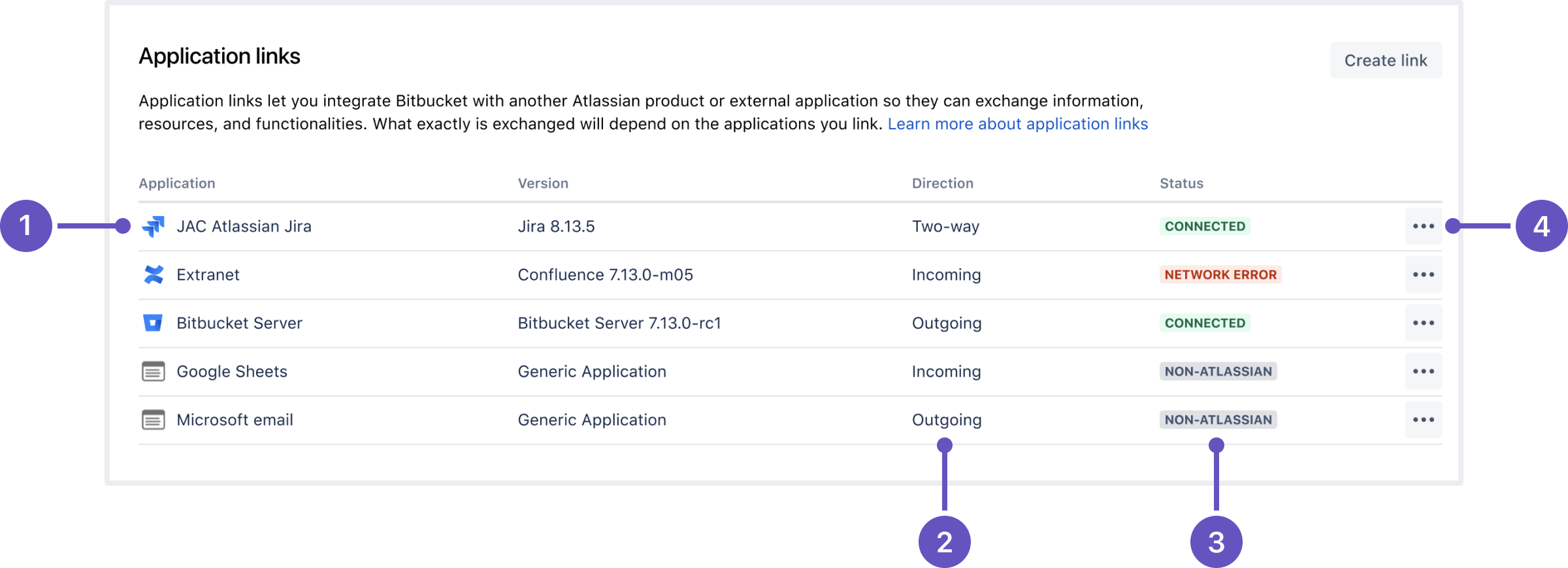
アプリケーション: リンクされたアプリケーションの名前とそのバージョン。外部アプリケーションの場合は、常に [汎用アプリケーション] と表示されます。
方向: 通信の方向。[受信]、[送信]、[双方向] のいずれかが表示されます。アトラシアン製品の場合は双方向通信を設定する必要がありますが、一部の外部アプリケーションでは双方向通信は不要です。
ステータス: 接続の状態。外部アプリケーションの場合は、常に [アトラシアン以外] と表示されます。
アクション: 編集や削除など、リンクに対して実行できるアクション。OAuth 2.0 接続の場合は、さらに OAuth 認証情報が表示されます。
OAuth 2.0 を使用したアトラシアン製品へのリンク
You can link Bitbucket to other Atlassian cloud or Data Center products using OAuth 2.0.
Connect Bitbucket Data Center to Atlassian cloud products
To connect to other Atlassian cloud products, such as Jira Cloud, you’ll need to configure both your Bitbucket Data Center instance and your Atlassian cloud application. Explore how link to Atlassian cloud apps using OAuth 2.0
In Bitbucket:
Go to Settings, then Application links.
Select Create link, and then:
For Application type, select Atlassian product via OAuth 2.0.
In Application URL, enter the URL of your Atlassian application. For example, this might be
http://jira.atlassian.com. If the application URL is different from the display URL, a dialog will appear to confirm the URL.
In the Create incoming link dialog, select scopes the application can have on your instance. More about scopes
You can see the following OAuth 2.0 credentials: Client ID and Client secret. Save them. You’ll need to copy them to your Atlassian cloud application during the creation of your outgoing link.
Optional) You also need to configure the connection in your Atlassian cloud application if you haven’t done so already. The following guide is for Jira Cloud, but the process is similar for all Atlassian cloud applications: Explore how link to Atlassian apps using OAuth 2.0.
In you Bitbucket Data Center instance, select Configure outgoing and then enter the Client ID and Client secret credentials generated by your Atlassian cloud application.
When you finish the application link configuration, you can select Test connection in both Bitbucket Data Center and your cloud application to verify that the application link is working. If the test fails, double-check the URLs and credentials in both applications.
Connect Bitbucket Data Center to other Data Center product
When connecting two Atlassian Data Center products, such as Bitbucket Data Center and Jira Data Center, you must create a placeholder incoming link in one application first. This is required because each application's incoming link setup requires information from the other application's outgoing link. After creating the initial incoming link and obtaining the OAuth 2.0 credentials, return to the other application to complete the outgoing link configuration. You might need to switch between both applications to finish the setup.
In Bitbucket:
Go to Settings, then Application links.
Select Create link, then:
For Application type, select Atlassian product via OAuth 2.0.
In Application URL, enter the URL of your Data Center product.
When prompted for the Redirect URI, enter a placeholder value, such as your current Bitbucket URL. You'll update this value later.
Complete the creation of the incoming link. You'll receive the Client ID and Client secret credentials.
Switch to the Data Center product you want to connect to (for example, Jira Data Center) and repeat steps 1–4 above. This will generate the Client ID and Client secret credentials for the other Data Center product.
Once you generate credentials for both Data Center products, you need to exchange credentials and update redirect URIs. As an example, we’ll connect to a Jira Data Center instance:
In Bitbucket, edit the outgoing link to Jira:
Enter the Client ID and Client secret from Jira.
Update the Redirect URI to match the value provided by Jira for its outgoing link.
In Jira, edit the outgoing link to Bitbucket:
Enter the Client ID and Client secret from Bitbucket.
Update the Redirect URI to match the value provided by Bitbucket for its outgoing link.
When you finish the application link configuration, you can select Test connection in your Data Center products to verify that the application link is working. If the test fails, double-check the URLs and credentials in both products.
Link to Atlassian products or external applications using OAuth 1.0
To link to other Atlassian products or external applications:
アプリケーション リンクで [リンクを作成] を選択します。
Select Atlassian product as the link type. This option also works for external applications. This is the original application links mechanism – we’ve left it under this option so users can still use their OAuth 1.0 integrations.
アトラシアン製品または外部アプリケーションの URL を入力します。
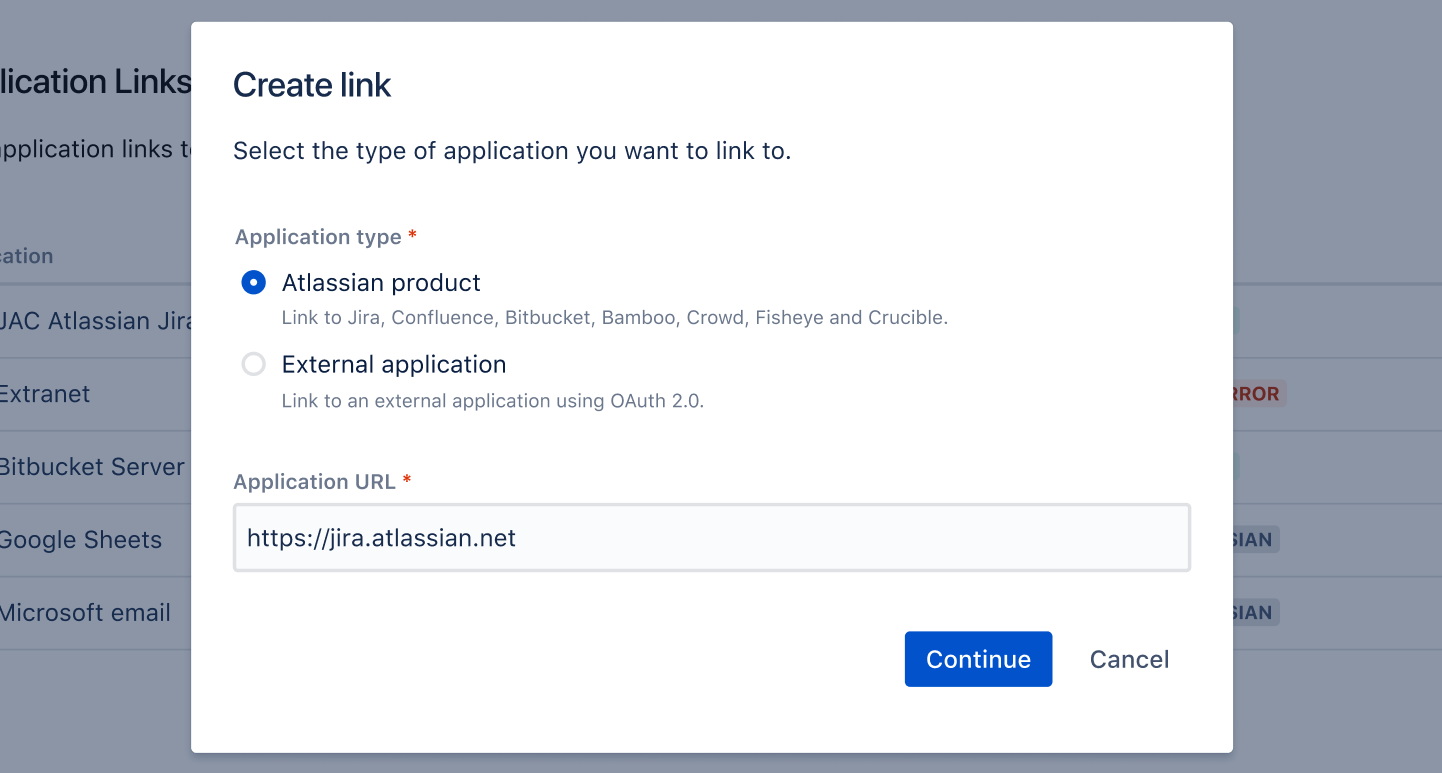
Follow the steps in the wizard. You’ll be redirected between Bitbucket and the product you’re linking to to authorize the two-way connection.
Make your 3rd party application compatible with application links
We’ve created an integration plugin that lets you connect Bitbucket to Jenkins using OAuth 1.0. You can also use this plugin as an example of how you can make your other 3rd party applications compatible with application links. For details, see Make your 3rd party application compatible with application links.
OAuth 2.0 によって外部アプリケーションにリンクする
You can also link Bitbucket to external applications using OAuth 2.0.
Configure Bitbucket as an OAuth 2.0 provider (incoming link)
In this scenario, Bitbucket acts as an OAuth provider, allowing the external application to access its data.
詳細については「受信リンクを設定する」をご確認ください。
Configure Bitbucket as an OAuth 2.0 client (outgoing link)
In this scenario, Bitbucket acts as an OAuth client, requesting data from the external application.
詳細については「送信リンクを設定する」をご確認ください。
We’ve added support for this scenario for future use. Currently, none of the functionalities in Bitbucket use the OAuth 2.0 client role.


