[!JIRADL:_Images^jira_ninja.png!]
[!JIRADL:_Images^agile_ninja.png!]
Unknown macro: {kbsurvey}
Hey there! This page is no longer being maintained, but we've created some new and improved resources to replace it. Head on over to our Quickstart site to check them out.
Installing Plugins
Please refer to these instructions for installing plugins.
|
|
|
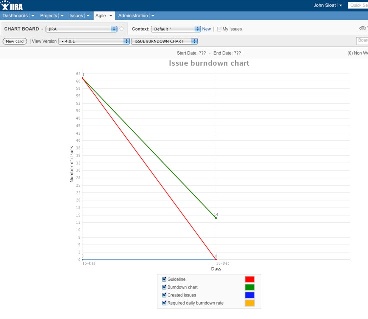
GreenHopper Chart Board
|
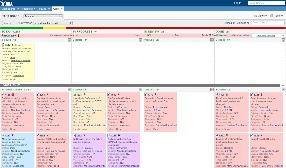
GreenHopper Task Board
|
|
|
|
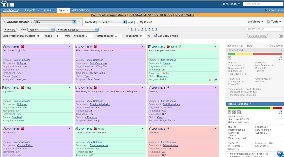
GreenHopper Planning Board
|
The GreenHopper Plugin provides agile project management to simplify both sprint planning and task tracking for your team. It consists of the following four "boards":
GreenHopper also includes a customisable gadget that allows you to generate burndown and burnup charts for any saved filter and place them on your dashboard.
GreenHopper comes bundled with your JIRA Hosted trial, so you can start using it right away! But first, you should read through the GreenHopper 101 page and follow the configuration steps to get it up and running to its fullest potential.
Note: A free trial of GreenHopper is included in your evaluation; if you wish to use it a non-evaluation environment, you will have to purchase a GreenHopper license.
|
|
|
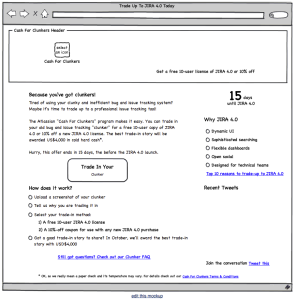
Website Mockup
|
Feature Mockup
|
|
|
|
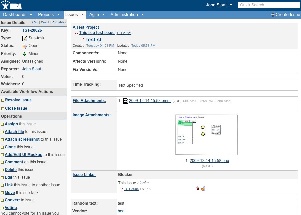
Mockups in JIRA
|
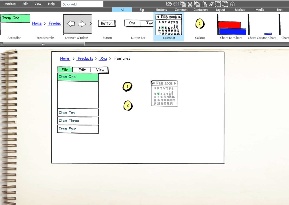
Online Editor
|
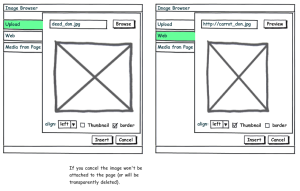
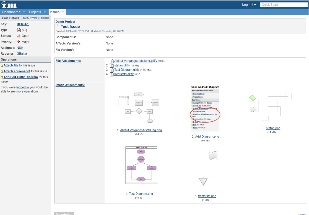
Ever heard the saying 'a picture is worth a thousand words'? Using the Balsamiq Mockups Plugin you can create and visualise mockups of diagrams for proposed layouts of website content, new features, and much more, right within JIRA.
You can reuse a whole bunch of Mockups that have been contributed by the community.
|
|
|
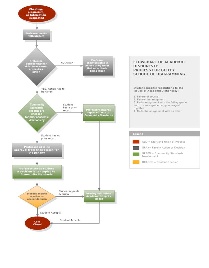
Sample Gliffy diagram
|
Gliffy diagrams in JIRA
|
The Gliffy plugin allows you to easily create professional-quality flowcharts and diagrams, right in your JIRA issue.
At Atlassian, we've used this tool to map out the possible paths a visitor to our website may take. This diagram is attached to a JIRA issue where users can discuss the possible flaws with the website design, and make changes to the diagram to address them.
JIRA's plugin system makes it easy to customise and extend JIRA for your specific issue tracking, project management and software development needs. The Atlassian Plugin Exchange is the largest plugin ecosystem of any issue tracker.
