

Quickstart guide for service desk email support
概要
This quickstart guide is for service desk project admins who want to quickly get email support up and running. The following steps are covered in this guide:
Ok, let's get started!
メール アカウントをリンクする
Open your service desk project and proceed to Settings > Email settings. Turn on email requests. Tip: You can do this by selecting the Turn it on button. Easy enough.
- If you're using JIRA Service Desk Cloud (hosted by Atlassian), you will see a default email address based on your site's URL. You can use both this existing email address and a new linked email account for your service desk email channel.
Select Add email account. Choose your email service provider and enter the requested details:

Tip: If you have two-step verification enabled for your Gmail account,
you will need to set up an application-specific password.
Once you have finished entering your email account details, select Next.
リクエスト タイプの選択
カスタマーがサービスデスクにメールを送信すると、対応するリクエストが次の2つのフィールドにより作成されます。
- サマリ (メールの件名から)
- 説明 (メール本文から)
In order to use the email channel, you therefore need to have at least one request type in your project with the Summary and Description fields – we call these types of requests "suitable for emails". Associating email requests with a suitable service desk request type ensures that the emails are successfully filtered into your service desk queues. In this example, we have one suitable request type ("Get help"):

Select your suitable request type and then select Done.
JIRA Service Desk will send a test email and create a corresponding test request in your service desk project. Head on over to the Queues tab to find the new request:
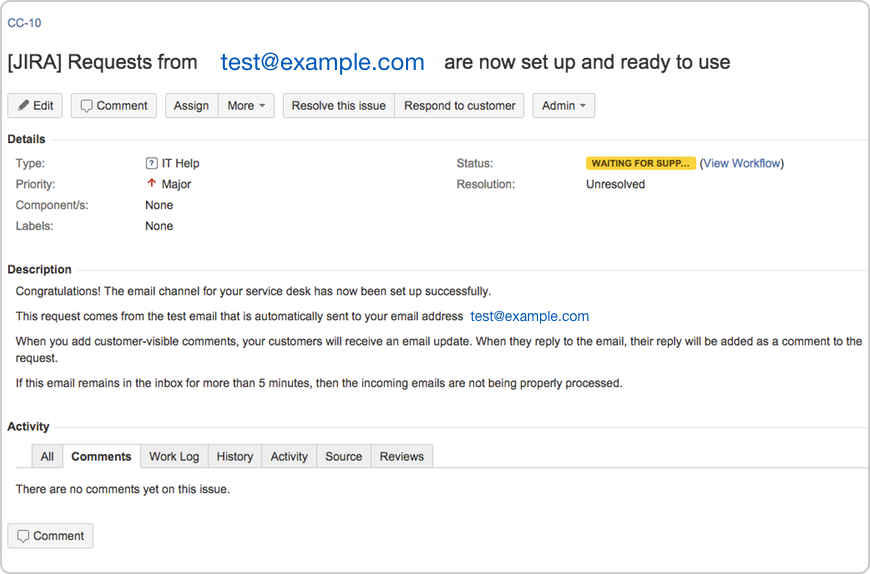
リンクされたメールアカウントに送信されるすべての新規受信メッセージは、サービスデスクのリクエストとしてプロジェクトに表示されるようになります。
Prepare your customers for email greatness
You're almost done! You just need to confirm whether you have an open or restricted service desk. New customer email requests can bounce if you have a restricted service desk, and that's no fun. Expand the statement that applies to you below to make sure your customers are ready to use your new email channel:
The bonus section
If you want learn more, check out Managing the email channel. If you encountered any issues during this process, check out some common errors on Troubleshooting issues with the email channel.
Feel free to provide feedback on this guide by selecting Documentation Feedback below.